NAV6c
User Guide
Complete reference for the NAV6c eNAVTEX System maritime safety information receiver. Get set up quickly, understand message types, and configure the system for your vessel.
NAVTEX is a worldwide system for the broadcast and automatic reception of maritime safety information (MSI) in English by means of narrow-band direct-printing telegraphy. It provides shipping with navigational and meteorological warnings and urgent information, free of charge.
NAVTEX is a component of the IMO/IHO Worldwide Navigational Warning Service and is included within the Global Maritime Distress and Safety System (GMDSS).
NAVTEX transmissions are sent from coastal stations situated worldwide. Each station is allocated a time slot every four hours so that many stations can share the same frequency without interference. Stations typically have a transmission range of 250–300 nautical miles.
The NAV6c eNAVTEX System receives messages on three frequencies simultaneously:
English
Local language
Extended coverage
The system automatically receives and categorises maritime safety messages:
- New Messages — recently received MSI, highlighted on arrival
- Nav Warnings — hazards and changes affecting safe navigation
- SAR Alerts — search and rescue operations
- Met Warnings — urgent meteorological hazard warnings
- Weather Forecasts — scheduled sea-area weather forecasts
View your vessel's heading on the Conning page, monitor position and course on the Navigation page, and track your route on the Chart.
Tap the gear icon or visit the Control Center to access system settings. Key settings include:
- General Settings — display and language options
- NAVTEX Settings — station and message type selection
- WiFi Settings — network connectivity
The NAV6c eNAVTEX System user interface is designed around simple swipe gestures and a dot navigation bar for quick access to all features.

Swipe down from the left side of the title bar to open the notifications panel. This panel slides down from the top and shows received alerts and system notifications.
-
⇧Close — swipe up on the panel or tap outside it
-
🔒Use the Clear button to dismiss all notification indicators
-
👍Tap a notification to navigate to the relevant page (e.g. a SAR alert)

Swipe down from the right side of the title bar to open the quick settings panel for fast access to common controls:
- Brightness slider — adjust screen brightness
- Mode toggle — switch between light and dark mode
- Volume slider and mute button
- WiFi toggle — enable or disable wireless
- Control Center button — open full settings
- Help button — view help for the current page
Swipe up on the panel or tap outside it to close.

The row of dots along the bottom of the screen represents your currently open pages. Each dot corresponds to one page.
-
•The active dot is highlighted and slightly larger to show which page you are on
-
👌Tap any dot to jump directly to that page
-
⌂Tap the background area of the navigation bar to open or return to the Home page
-
⇆Swipe left or right on the bar to move between open pages
Swipe up from the dot navigation bar to open the page list, which shows all open pages as icons.
- Tap an icon to switch to that page
- Drag an icon to reorder pages
- Long press an icon to enter close mode for that page
NAVTEX messages contain maritime safety information broadcast by coastal stations worldwide. The system automatically receives, stores, and categorises these messages covering navigational warnings, weather forecasts, search and rescue alerts, and other safety information.

Each message in the list is shown with a header bar. Tap a message to expand it and view the full text. The header contains:
- Subject Icon — icon on the left representing the message category
- Message Identifier — B1B2 station and subject letters plus two-digit serial number (e.g. UE93 = station U, subject E, message 93)
- Time Received — shown as HH:mm MMM d (e.g. 14:30 Jan 5)
- Station Name — name of the transmitting station
- Frequency Icon — which NAVTEX frequency the message was received on
- Signal Strength — receive quality of the best intercept
- Read/Unread — envelope icon; closed = unread, open = read. Tap to toggle.
Every NAVTEX message begins with a standard four-character header that uniquely identifies each message and determines how it is categorised and displayed.
B1 — Station Identifier
A single letter identifying the transmitting station. For example, A is Niton (UK) and G is Cullercoats (UK) on 518 kHz. Each NAVAREA has its own set of station assignments.
B2 — Subject Indicator
A single letter describing the type of information in the message:
| Code | Subject |
|---|---|
| A | Navigational warning |
| B | Meteorological warning |
| C | Ice report |
| D | Search and rescue (SAR) |
| E | Meteorological forecast |
| F | Pilot and VTS service |
| G | AIS |
| H | LORAN |
| J | GNSS |
| K | Other navigational aid |
| L | Navigational warning (additional) |
| V | Meteorological readings |
B3B4 — Serial Number
A two-digit number from 01 to 99 identifying the individual message. Serial numbers are assigned sequentially and recycled when they reach 99.
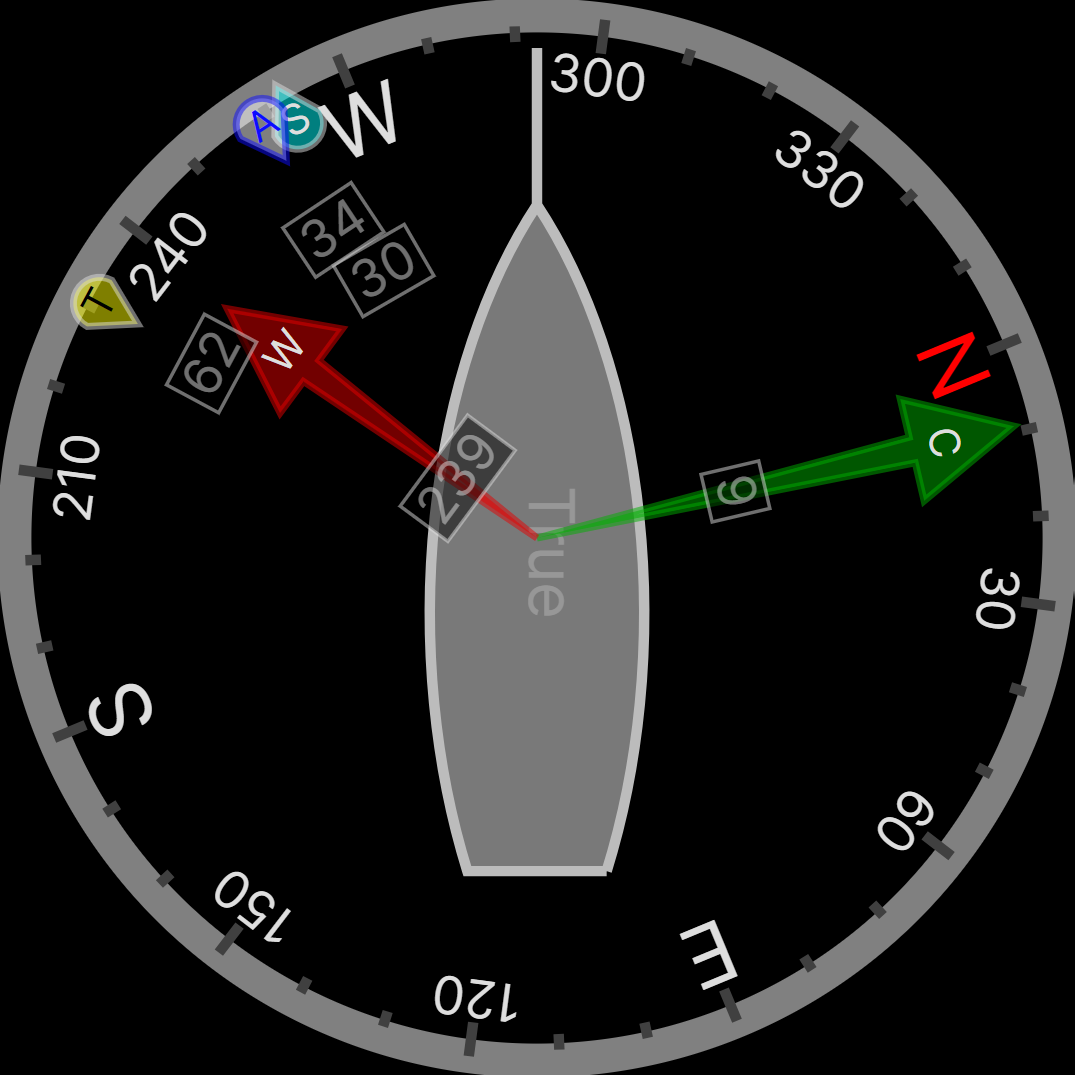
The Conning page is a unique analogue display showing overlapping vectors for Heading (course through the water), Course Over the Ground (COG), Set (a combination of leeway and tide), and wind. All vectors are displayed relative to the current heading, which is shown in digital form at the top of the screen.
Vector Symbols
- Single-headed arrow — Heading
- Double-headed arrow — Course Over the Ground (COG)
- Triple-headed arrow — Set
- Variable tail feathers — Wind (meteorological convention: 5 kts per half feather, 10 kts per full feather, 50 kts per triangle)
Computed Set and Drift and other related parameters are shown in digital form at the bottom of the screen. Heading data is sourced from connected NMEA compass or GPS instruments and updates in real time.
The Chart page displays your vessel's position on an OpenStreetMap-based nautical chart. AIS vessel traffic is overlaid on the chart when available.
- Pan — drag the chart with one finger
- Zoom — use pinch gestures to zoom in and out
- AIS targets — tap on AIS targets to view vessel details
- Auto-centre — the chart automatically centres on your vessel position when GPS data is available
The Waypoint View shows waypoint navigation information and a graphical "rolling road" display of the boat position and course relative to the course line. The rolling road display can be used to steer the boat along the course line whilst keeping the cross track error within chosen limits.
The Waypoint View shows:
- Waypoint name and position
- Time to Go (TTG — hours, minutes and seconds)
- Range and bearing to waypoint
- Closing speed to waypoint
- Cross Track Error (XTE)
- COG and SOG
The AIS Targets page shows vessels detected by the Automatic Identification System. Each target displays vessel name, MMSI, position, course, and speed. Tap a target to view detailed vessel information including:
- Closest Point of Approach (CPA)
- Time to CPA (TCPA)
AIS data is received from connected AIS receivers.
The Satellite page shows GPS satellite status including the number of satellites in view, their signal strength, and position in the sky. The sky plot shows satellite positions relative to your vessel.
The Odometer page tracks your vessel's distance travelled calculated from GPS position data. It shows both:
- Trip distance — resettable at any time
- Total distance — cumulative distance record
The Barometer page shows air pressure information in a plotted format. The current air pressure, barometric tendency, and Beaufort Scale forecast are also displayed.
Monitoring pressure trends is essential for weather forecasting at sea. A falling barometer indicates approaching low pressure and potentially deteriorating weather. A rising barometer generally indicates improving conditions.
The tendency describes the rate of pressure change over the last hour:
- Steady — less than 0.03 hPa change
- Rising or falling slowly — 0.03 to 0.5 hPa
- Rising or falling — 0.5 to 1.2 hPa
- Rising or falling quickly — 1.2 to 2.0 hPa
- Rising or falling rapidly — greater than 2.0 hPa
The wind forecast is derived from the rate of pressure change. More rapid changes in pressure generally indicate stronger winds:
- Less than 1.0 hPa/h: Beaufort 0–5 at sea, 0–4 on land
- 1.0 hPa/h or more: Beaufort 6 at sea, 5 on land
- 2.0 hPa/h or more: Beaufort 7–8 at sea, 6–7 on land
- 3.0 hPa/h or more: Beaufort 9–12 at sea, 8–12 on land
The Sources page shows all connected data sources and their current status. This includes NMEA instruments, GPS receivers, AIS receivers, and NAVTEX receivers.
Use this page to verify that all your instruments are connected and providing data. Each source shows its connection status and data update rate.
The NMEA Monitor page shows raw NMEA 0183 sentences as they are received from connected instruments. Each sentence is displayed with its timestamp and source.
Use this to troubleshoot instrument connections and verify data quality.
The Control Center provides access to all system configuration pages. Tap an icon to open the corresponding settings page. From here you can configure:
The General Settings page allows you to configure the display language, date and time format, units of measurement, and other system-wide preferences.
The WiFi Settings page allows you to connect to wireless networks for software updates and cloud services. You can scan for available networks, enter passwords, and manage saved connections.
The Vessel Settings page allows you to enter your vessel's details including name, call sign, MMSI number, and vessel dimensions. This information is used for AIS identification.
The Barometer Settings page allows you to configure pressure units, display range, and alarm thresholds for the barometric pressure display.
- Add a source by tapping the green + button and entering an IP address and port
- Remove a source by tapping the red X button beside it
Demo Mode
Enable Demo Mode to simulate NMEA data when no live instruments are connected. Use the Reset button to restore default source settings.
The Storage Settings page shows the available storage space and allows you to manage stored data including navigation logs, NAVTEX messages, and chart tiles.
You can clear cached data to free storage space. Chart tiles are downloaded and cached automatically as you browse the chart.
The database contains details of NAVTEX transmitting stations from around the world. Each entry includes the station identifier letter (A to X), its NAVAREA, station name, latitude, longitude, transmission range, and operational status.
The station database is used to:
- Display station names in message headers
- Determine which stations are nearest to your position or within range
- Populate the broadcast timetable
The Software Updates page allows you to check for and install software updates. A WiFi connection is required to check for updates.
The Power Settings page provides options to restart or shut down the device. Use restart when troubleshooting issues or after configuration changes that require a restart.
The Diagnostics page provides system health information including CPU temperature, memory usage, and network status. Use this page to troubleshoot system issues.
Diagnostic information can be useful when contacting technical support. You can also export diagnostic logs from this page.
The About page shows product information including the software version, serial number, and company details. It also displays the OpenStreetMap licence information.